Camera settings
The camera UI is based on the ALEXA 35 and is usable with all ARRI virtual cameras. Open Window > ARRI LUKA > Camera UI.
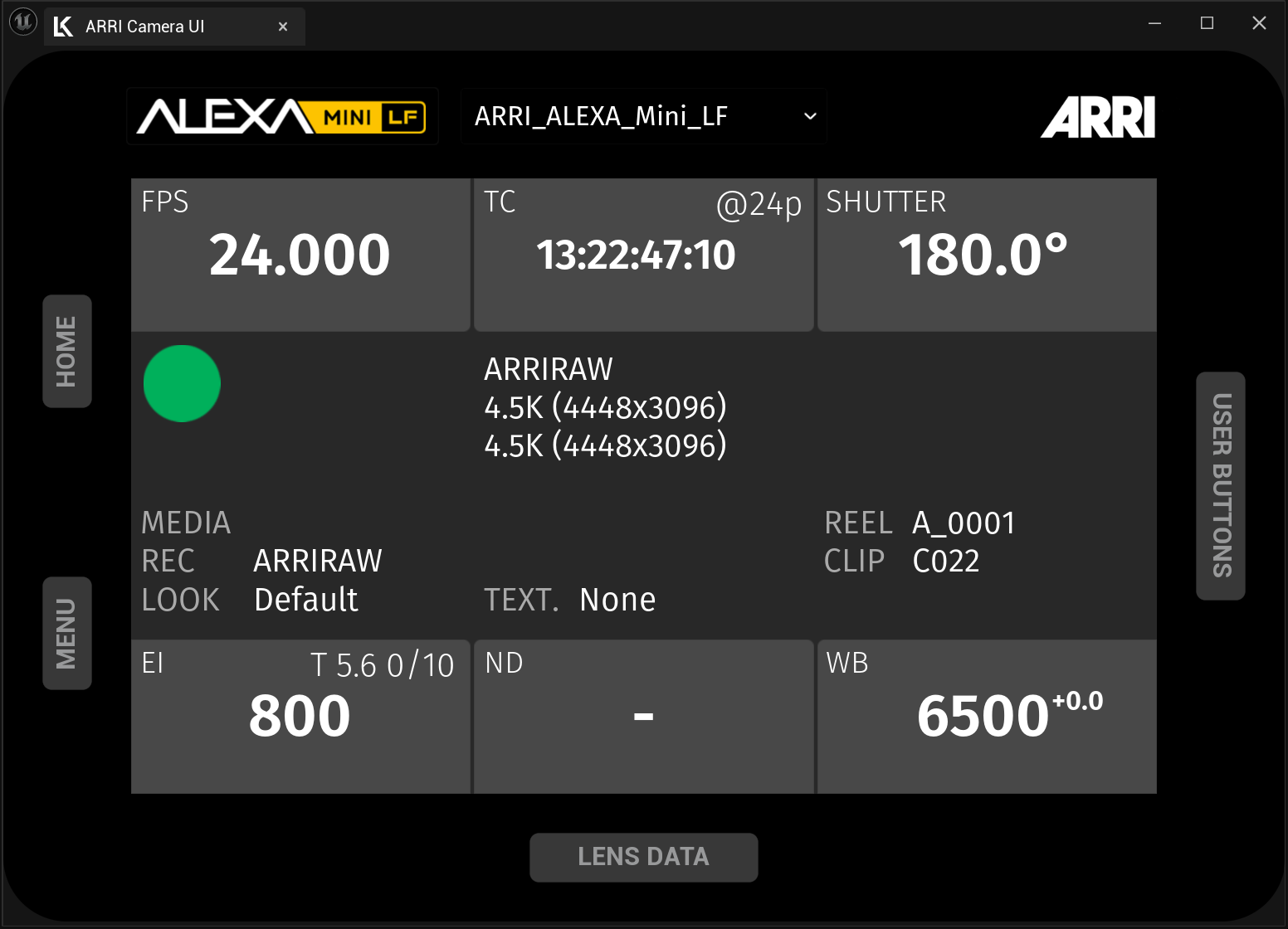
Home screen
FPS and timecode
Camera FPS affects exposure time per frame, not the engine's rendering frame rate. Unreal Engine generates timecode; the camera UI does not change the provider. See Timecode and synchronization in Unreal Engine.
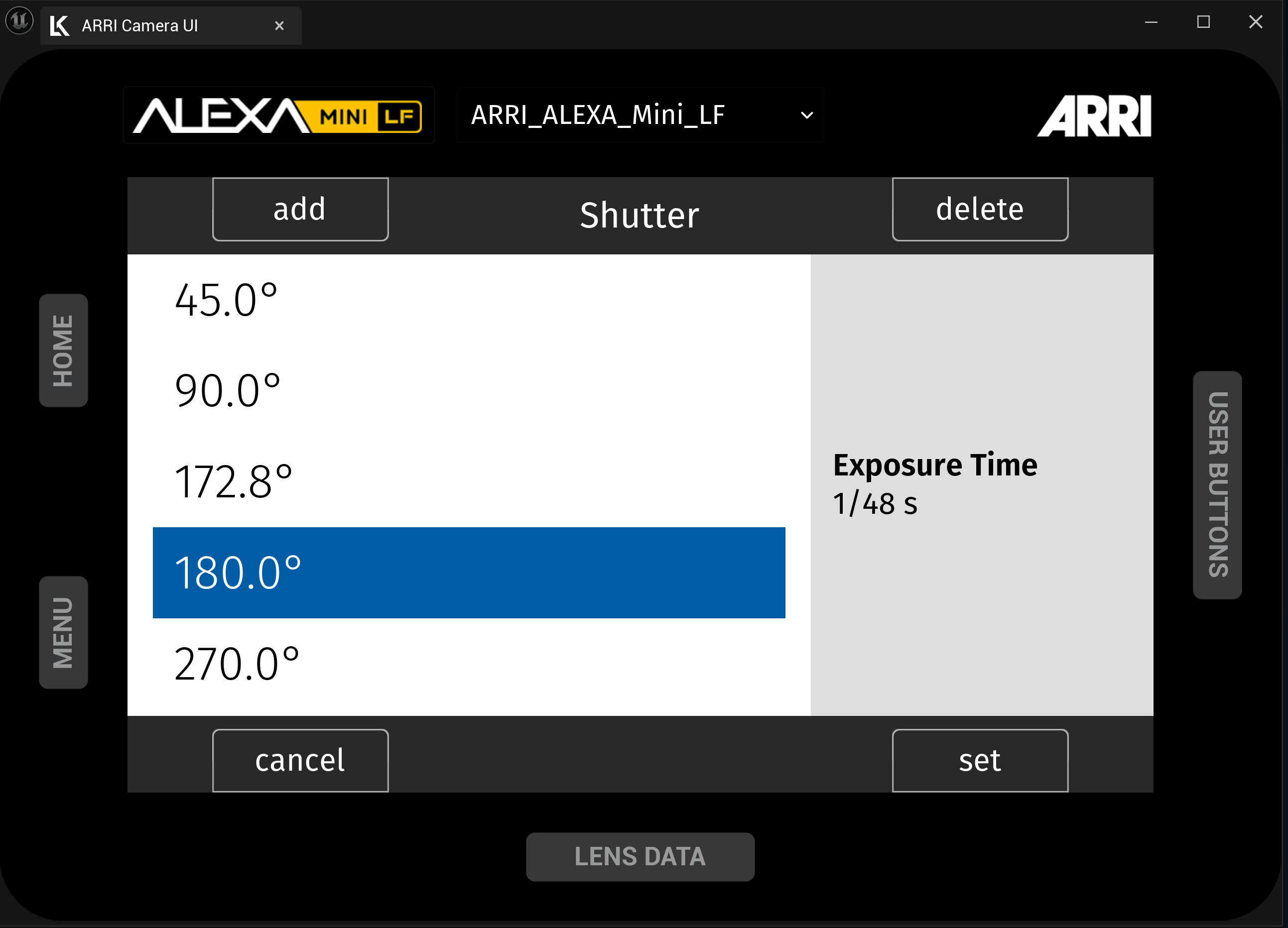
Shutter angle and exposure time
These values determine sensor exposure duration per frame. Switch units through Menu > System > Shutter Unit.
Exposure index
Increasing Exposure Index increases sensitivity to light.
Note
The virtual camera does not simulate sensor noise; changing Exposure Index does not accurately represent real sensor noise.
ND filter
Available internal neutral density filters depend on the camera model.
| ND filter | Light reduction |
|---|---|
| ND 0.6 | 2 stops |
| ND 1.2 | 4 stops |
| ND 1.8 | 6 stops |
| ND 2.1 | 7 stops |
White balance
White balance uses color temperature and tint. White balance may differ between physical and virtual cameras because the white balance simulation is less accurate than the fixture color output.
Recording
Recording codec
Select a codec to view available sensor modes and recording resolutions.
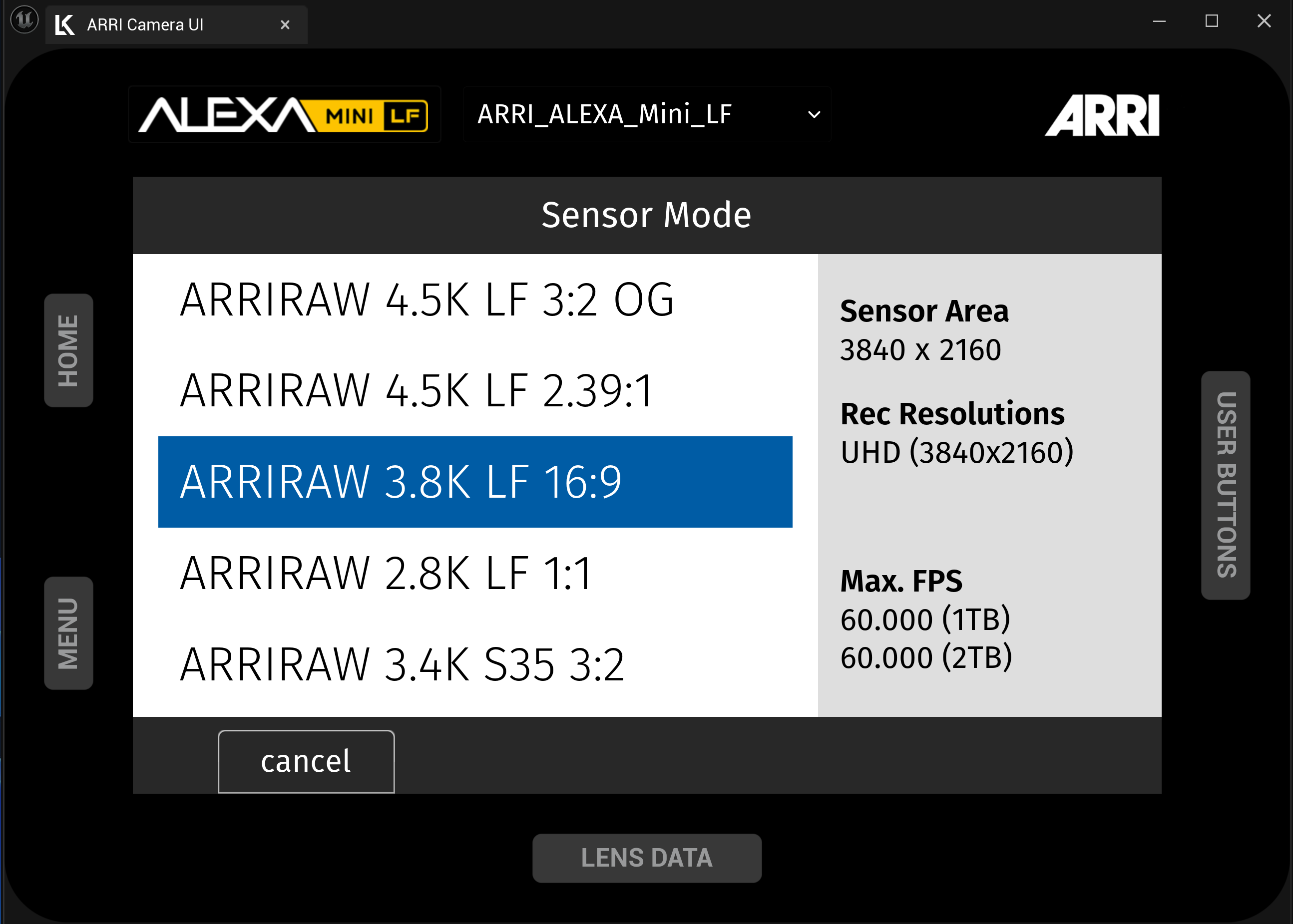
Sensor mode
Defines active sensor recording resolution and displays available recording speeds and resolutions. These speeds do not limit Unreal Engine FPS.
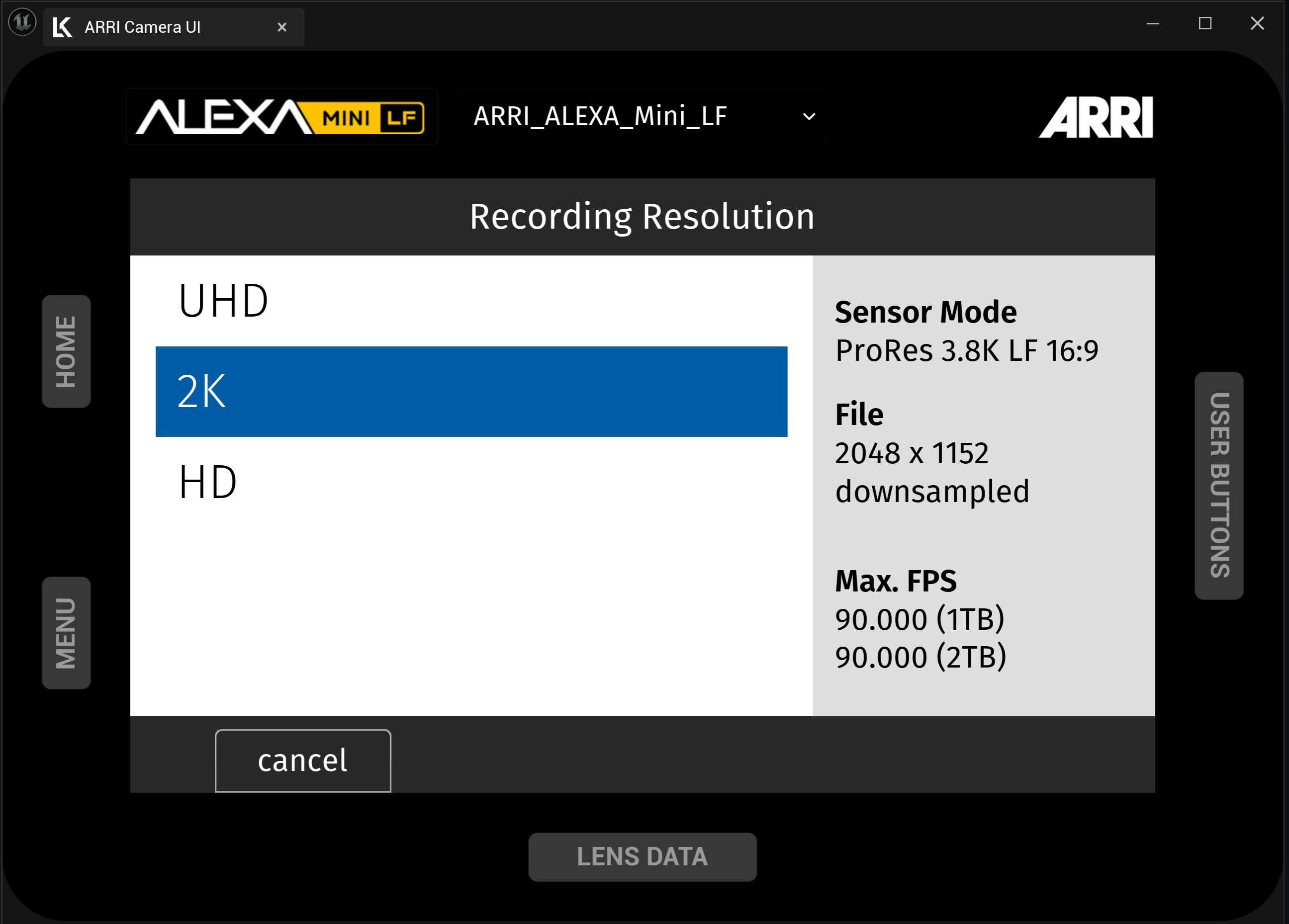
Recording resolution
Informational only; does not change the viewport or Movie Render Queue resolution. Use it to understand physical-camera recording options.
Project settings
- Project Rate: synchronized with camera FPS, unlike the independent project rate, timecode rate, and sensor FPS of a physical camera.
- Camera Index: changes the camera lettering on viewport overlays and shot metadata.
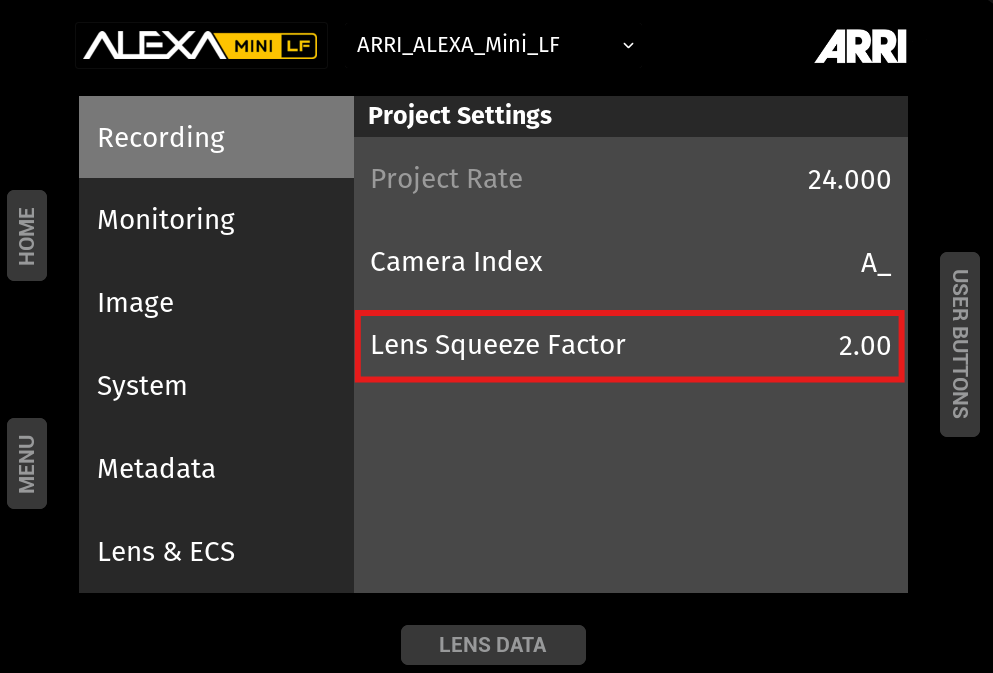
- Lens Squeeze Factor: sets project squeeze; match it to the selected lens.
Monitoring
Viewport processing
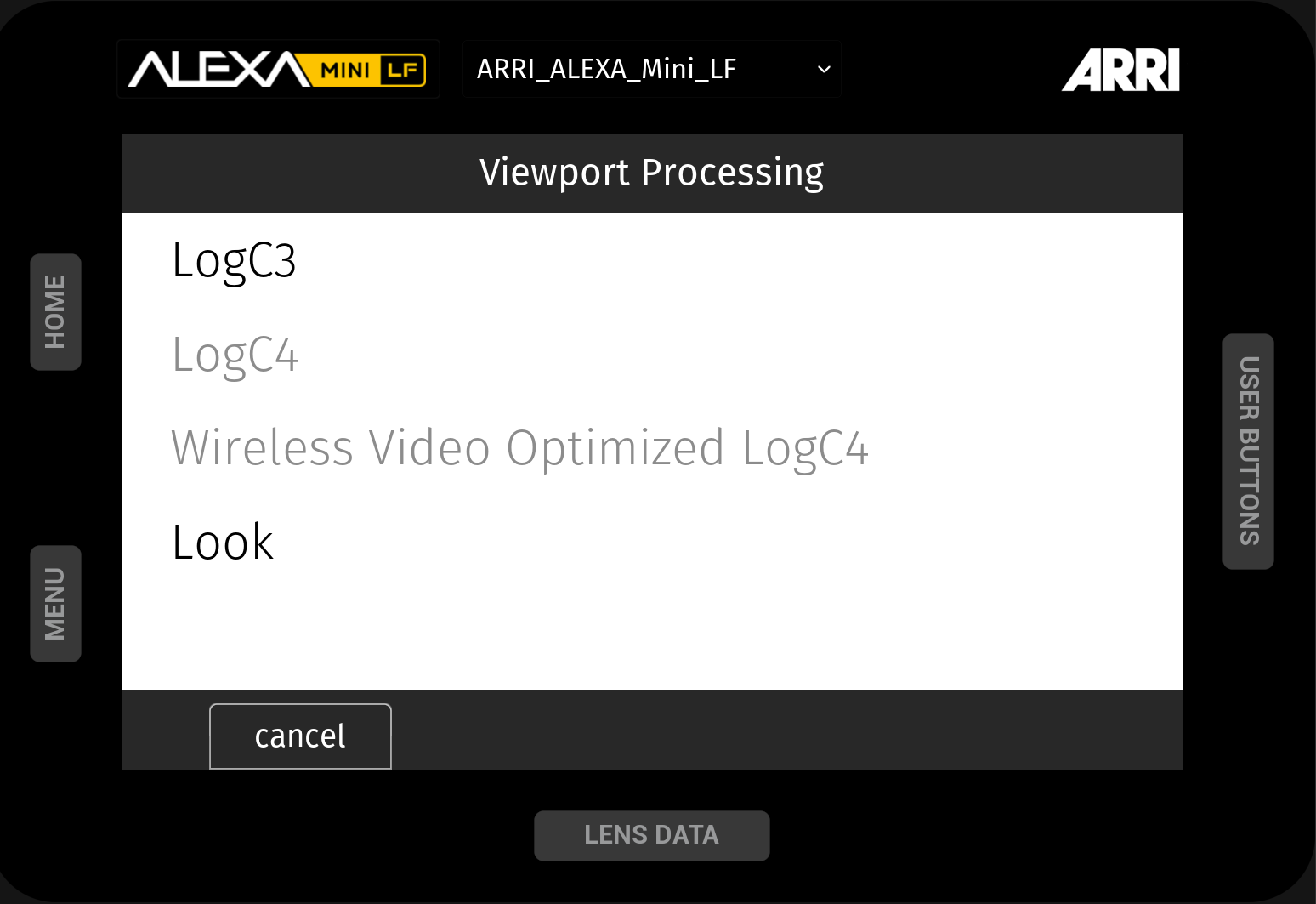
Simulates the camera's SDI output. Enable or disable overlays and framelines, or set Status Info to Clean to remove overlays.

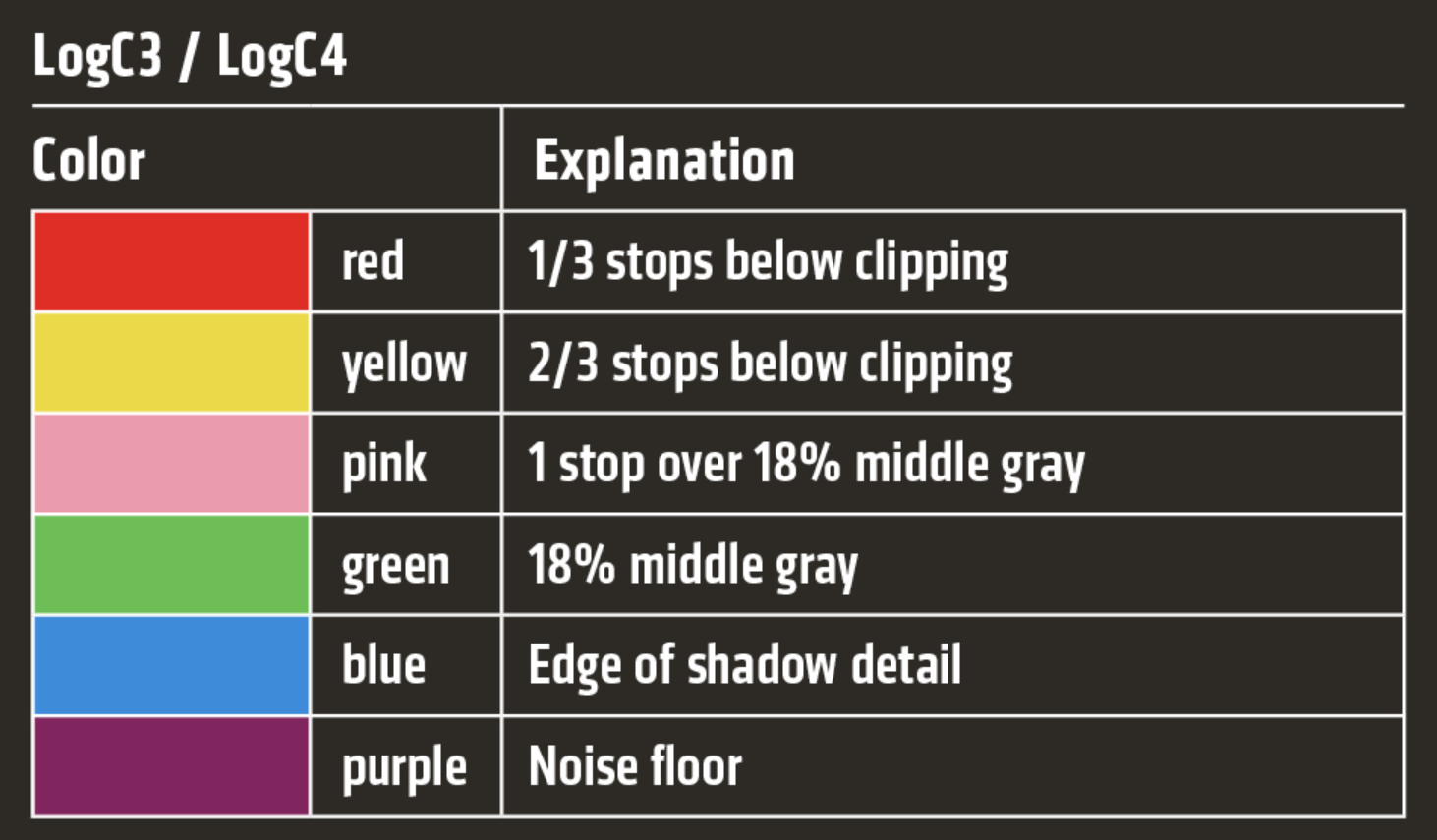
False color
Open Monitoring > Viewport Processing > False Color to enable exposure visualization.
Framelines
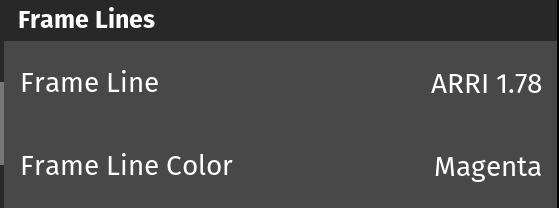
Choose predefined framelines and adjust their color. Custom framelines and simultaneous display of multiple framelines are not supported.
Image
Look
Choose display-referred Look or LogC3 or LogC4 according to the camera model. Display transforms for Look:
- sRGB
- Rec. 709 (SDR)
- Rec. 2020 (SDR)
- Rec. 2100 / PQ (HDR)
- Rec. 2100 / HLG (HDR)
Ensure the display expects the selected signal before choosing a transform.
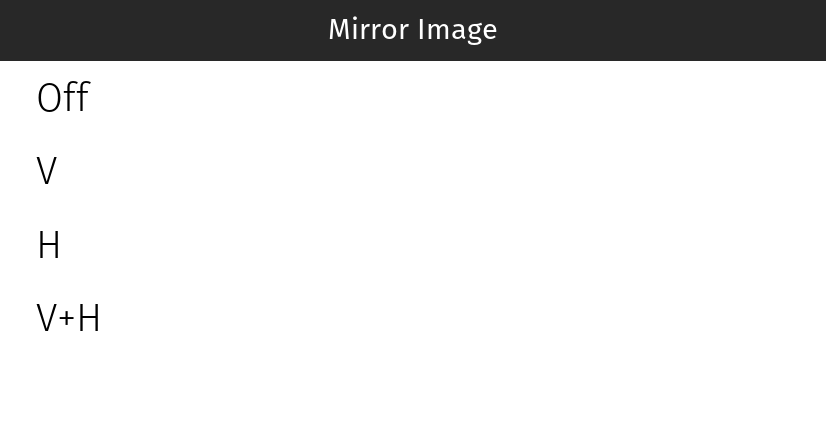
Mirror image
Flip horizontally (H), vertically (V), or both (H+V).
System
Shutter Unit selects Shutter Angle or Exposure Time for the home screen.
Metadata
Available fields: Production, Production Company, Director, Cinematographer, Camera Operator, Location, Scene, Take, User Info 1, and User Info 2.
Lens & ECS
Circle of Confusion can be set as metadata but does not affect the image.
Lens settings
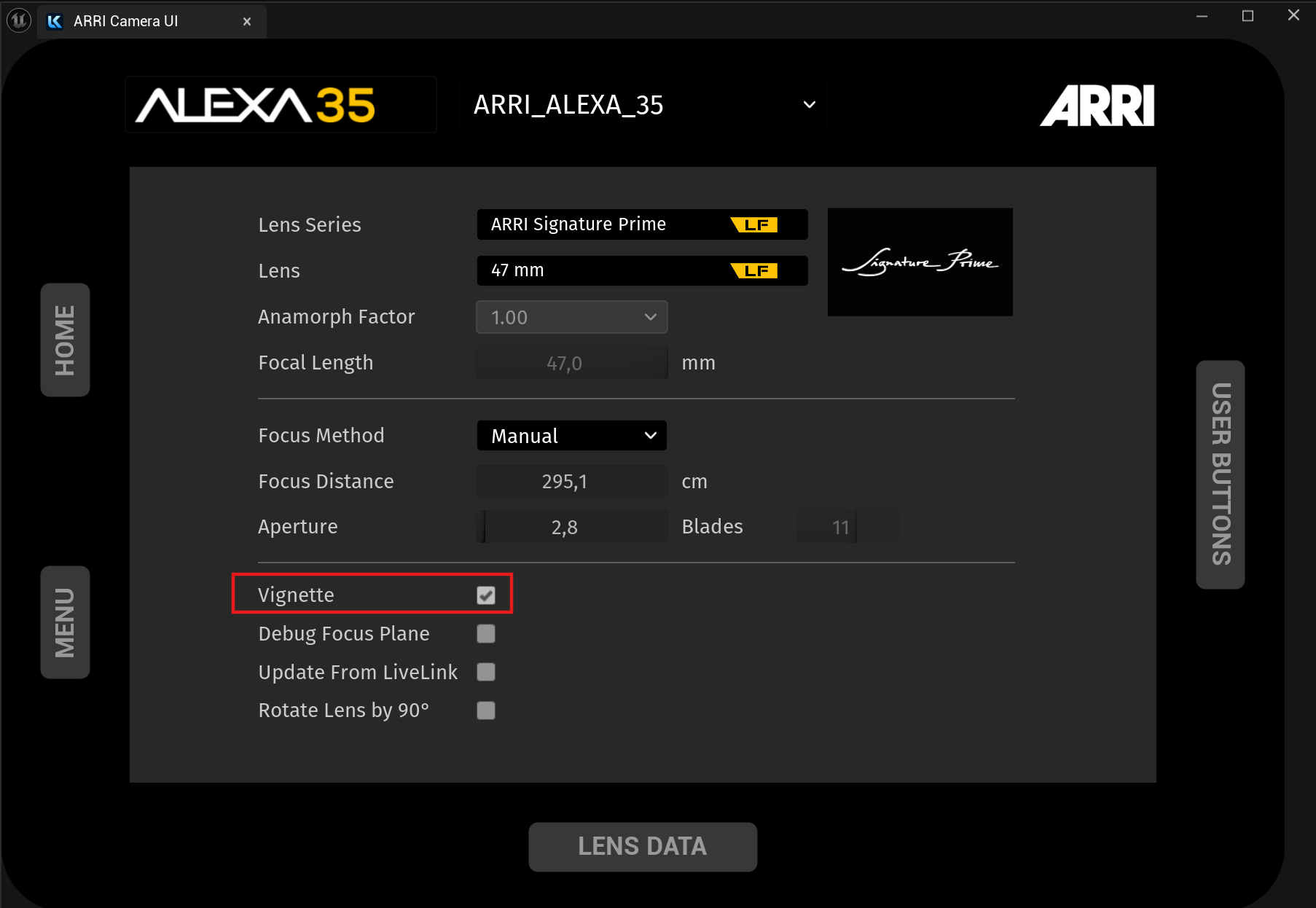
Select Lens Data in the camera UI.
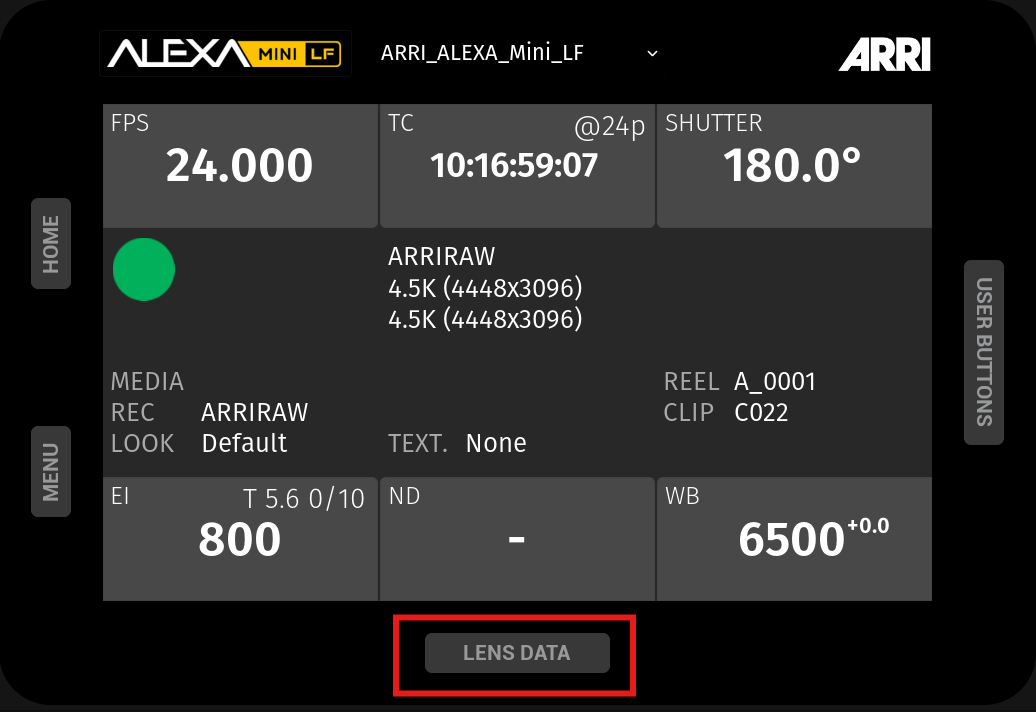
Available lens sets: ARRI Signature Prime, ARRI Signature Zoom, ARRI Enso Prime, ARRI Master Prime, and ARRI Master Anamorphic.
Lens functions include Anamorph Factor, Focal Length, Focal Length Min/Max (zoom only), Focus Distance min/max, Aperture and Aperture min/max, and Vignette.
Lens squeeze factor
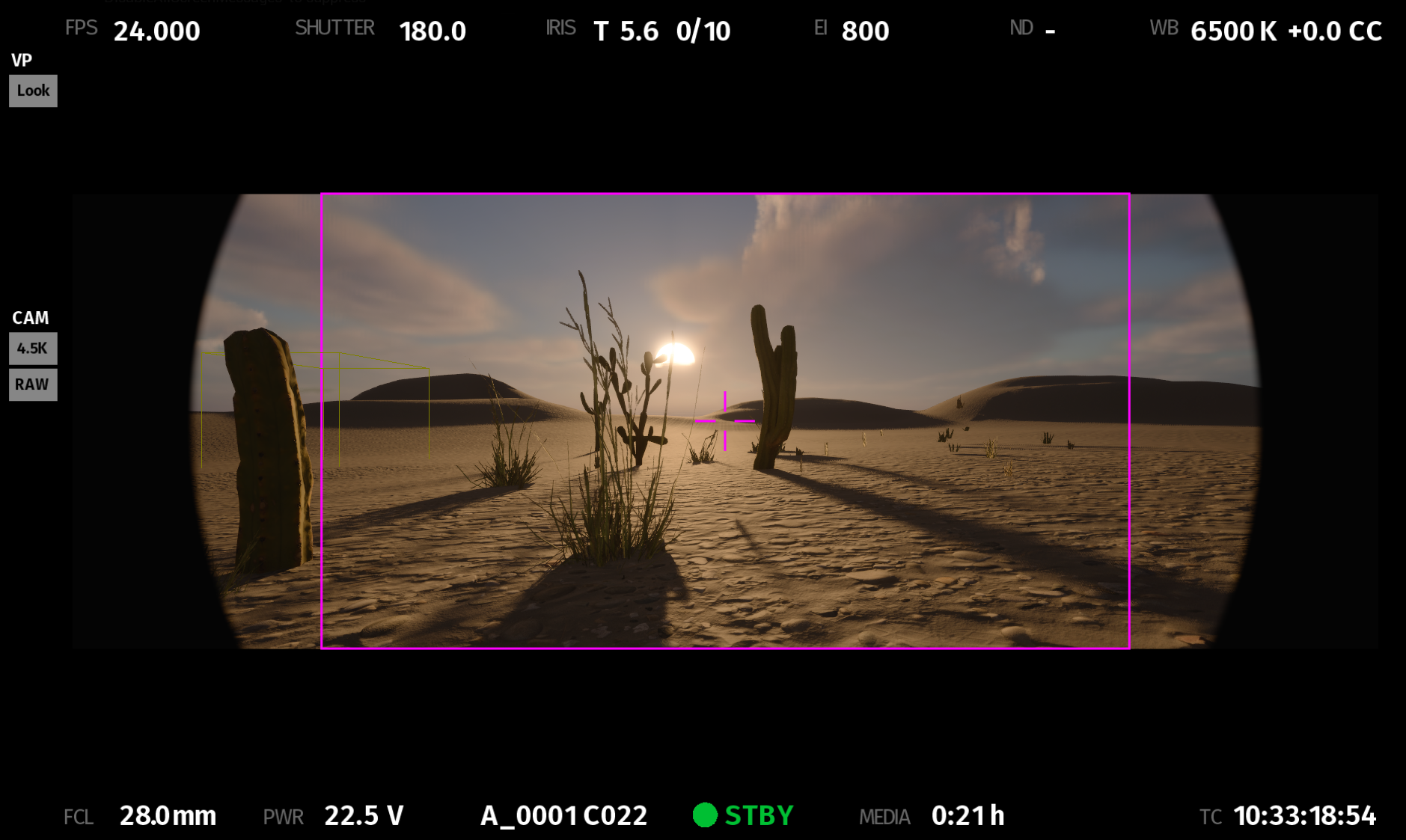
The factor determines horizontal and vertical projection. A 2.0 anamorphic lens with a project squeeze of 1.0 produces a vertically stretched image, consistent with a physical anamorphic setup lacking desqueeze.
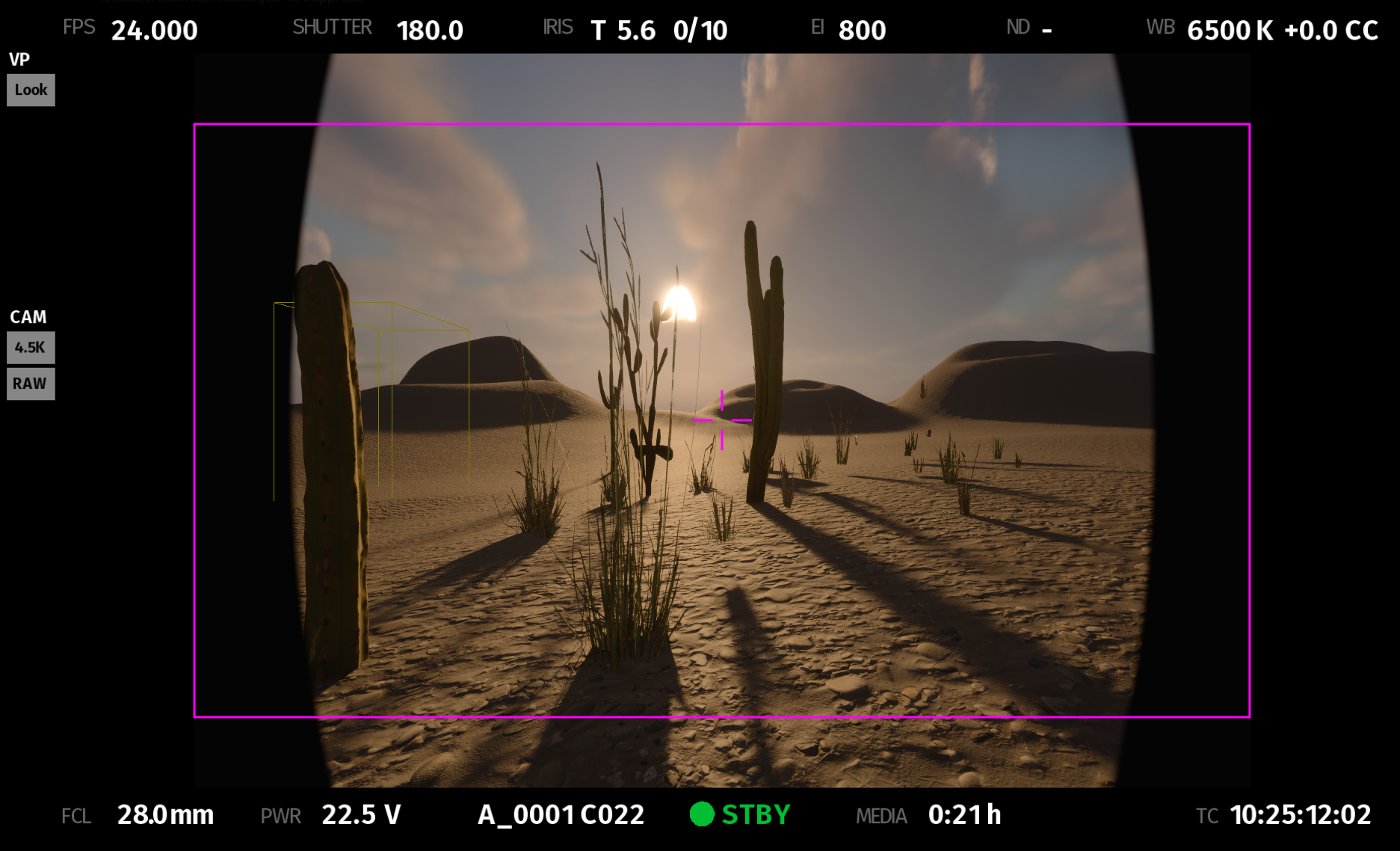
Set Menu > Recording > Project Settings > Lens Squeeze Factor to 2.0 for this example.
Vignette
Enable or disable lens vignette. It approximates image-circle coverage for the chosen recording settings, without changes due to aperture or focus distance.
User buttons
The camera UI has one user button for False Color. User buttons are not customizable.