Lighting user interface
Open Window > ARRI LUKA > Lighting. The interface lists all ARRI Light Actors, following the Outliner folder hierarchy.
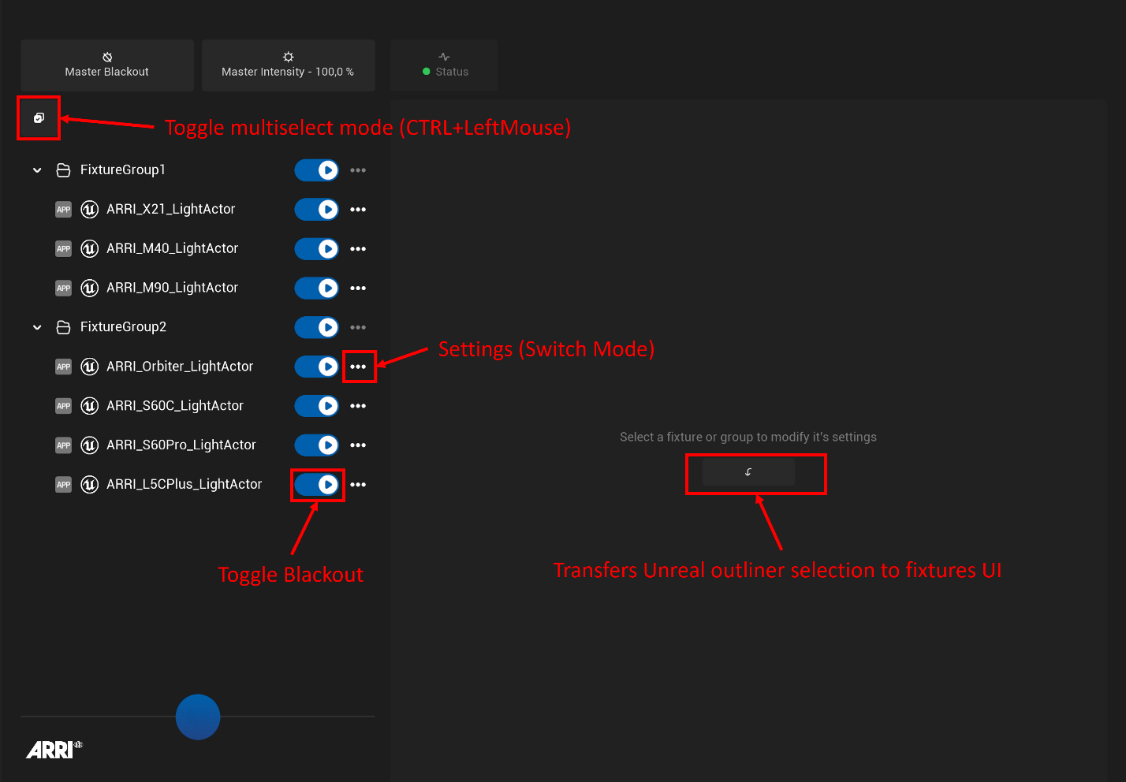
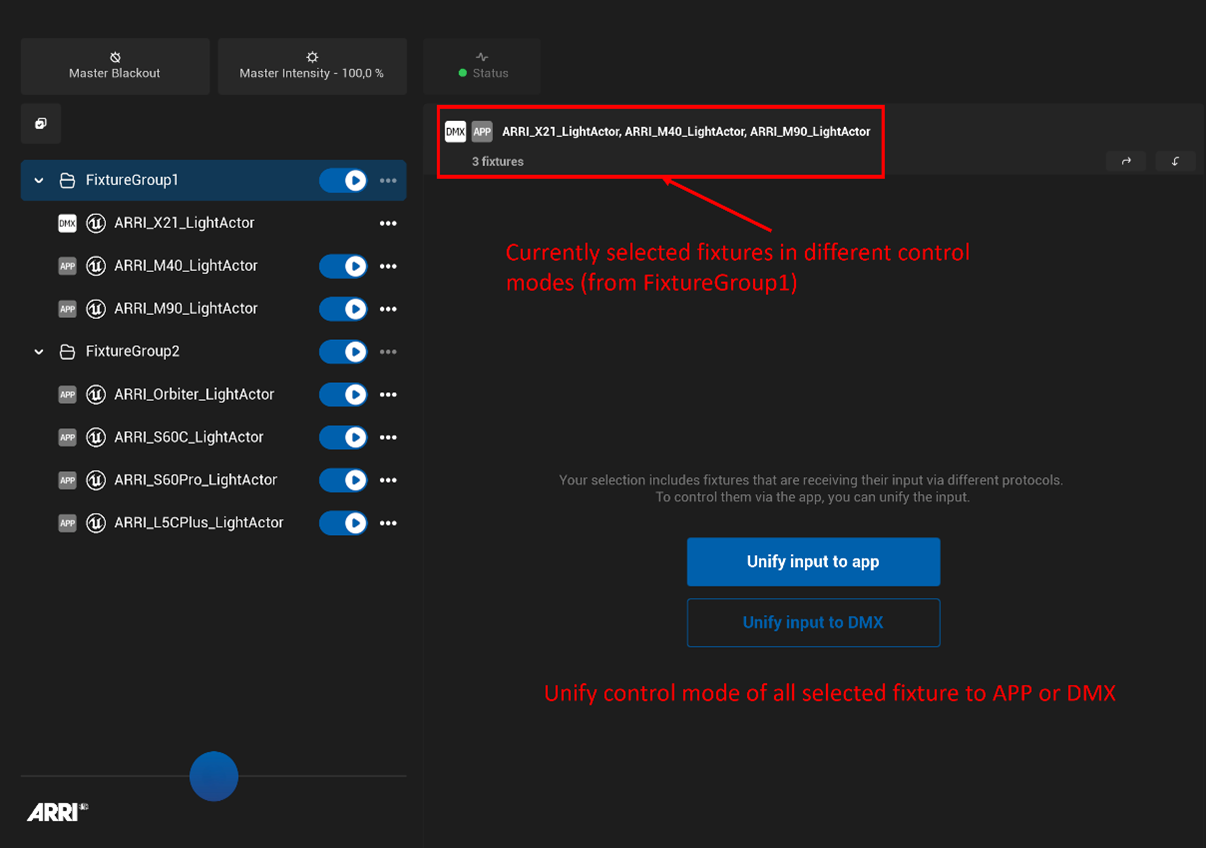
Use the fixture’s Settings button to switch between APP Control and DMX Control. When selected fixtures use different control modes, a prompt allows you to unify them.
APP Control
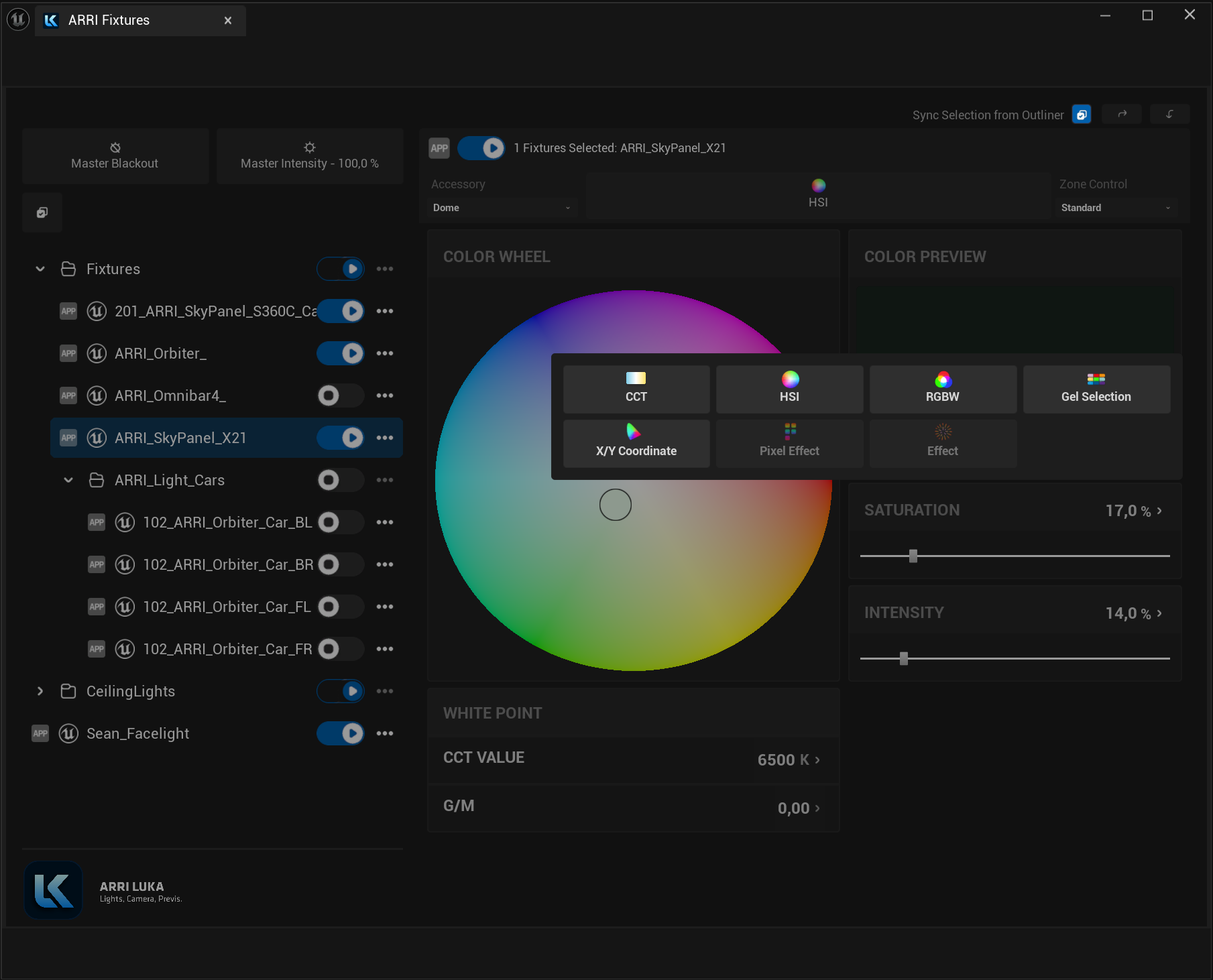
Use APP Control to adjust color and brightness directly in the Lighting UI.
Available color modes depend on the fixture type. Correlated color temperature (CCT) and hue, saturation, and intensity (HSI) are among the available controls.
| Fixture | Type | Color modes | White point control |
|---|---|---|---|
| Orbiter, SkyPanel X21, SkyPanel S60 Pro, ARRI Omnibar 2, ARRI Omnibar 4 | LiOS LED | CCT, HSI, RGBW, CIE xy, Gel | All modes |
| S30-C, S60-C, S120-C, S360-C, L5-C Plus, L7-C Plus | FW45 LED | CCT, HSI, RGBW, CIE xy, Gel | RGBW calibrated |
| L5-C, L7-C, L10-C | Old-generation LED | CCT, HSI, Direct (RGBW) | No |
| D5, D12, D25, D40, M8, M18, M40, M90, ARRIMAX 18/12 | Daylight | Intensity (50–100%), Gel (reduces brightness) | Fixed CCT, 6000 K default |
| Custom practicals | Daylight | Intensity, CCT, Gel | Yes |
For multiple selections, the first fixture's color mode is displayed. Changes in Color Control are applied to all selected fixtures.
DMX Control
Switching to DMX Control enables Receive DMX From Patch on the DMXComponent. Select an existing library and fixture patch. Use Open selected DMX Library at the top right to open the asset.
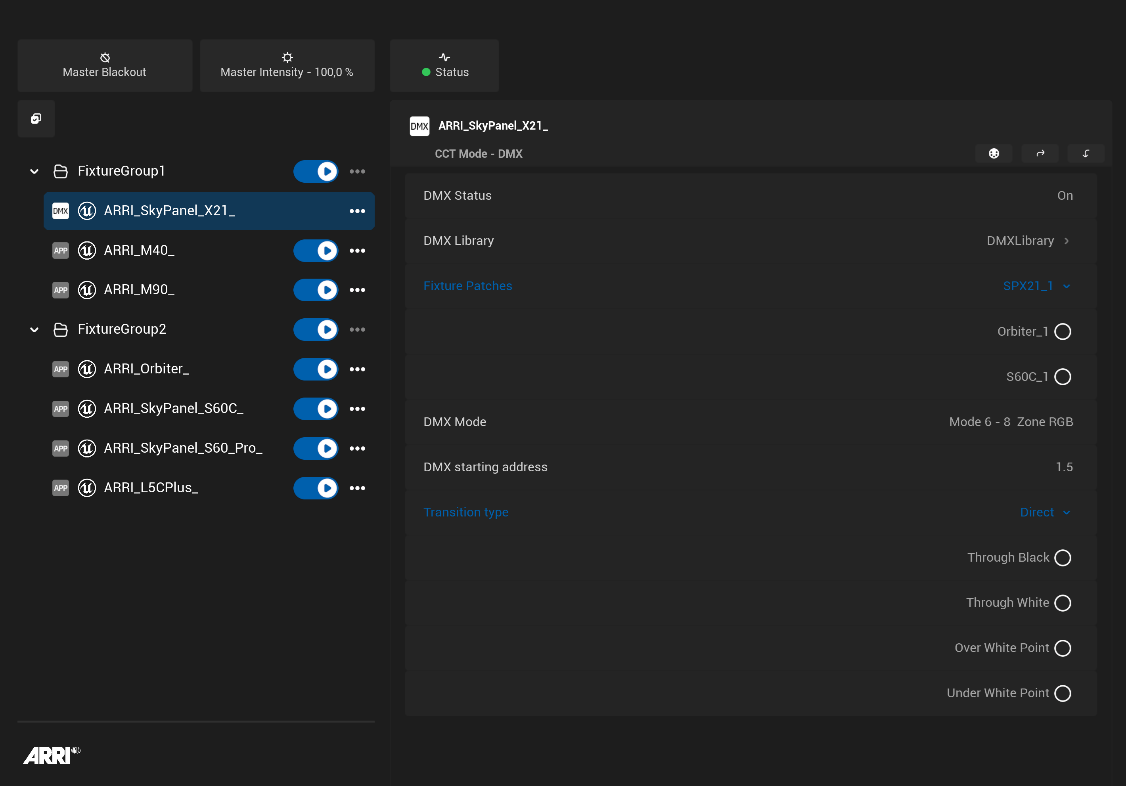
For LiOS and FW45 fixtures, use Transition Type to set the crossfade behavior. For multiple selections, the first fixture's DMX settings are displayed; changes synchronize to all selected fixtures.
See DMX configuration for fixture patches and supported modes.